TRENDING
  • About
  • Contact
No Result
View All Result
  • Home
  • News
  • Review
  • Devices
    • Apple Gadget
    • Ipad
    • Iphone
    • Macbook
  • Apps
  • Compares
SUBSCRIBE
  • Home
  • News
  • Review
  • Devices
    • Apple Gadget
    • Ipad
    • Iphone
    • Macbook
  • Apps
  • Compares
No Result
View All Result
No Result
View All Result
Home Devices Apple Gadget

How to use Messages with Siri on iPhone and iPad

by
April 18, 2022
in Apple Gadget, Ipad, Iphone
0
How to use Messages with Siri on iPhone and iPad
465
SHARES
1.5k
VIEWS
Share on FacebookShare on Twitter

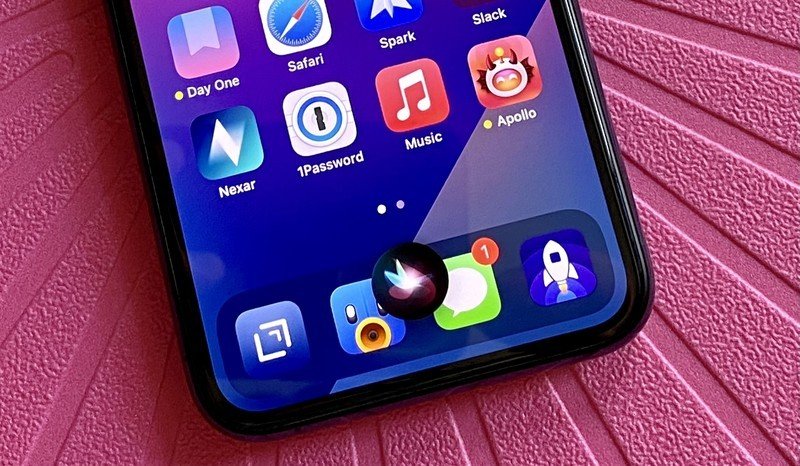
Ios 14 Compact Ui SiriSource: Christine Romero-Chan / iMore

Even if you aren’t the type of person to simply text your besties all day, there’s a good chance that you still make use of the Messages app. Whether you’re sending a message to your significant other or family and friends or dragged into a group message, the Messages app is something that pretty much everyone uses.

But what about when you’re driving? Well, it’s illegal to text and drive, so that’s when Siri comes in handy. That’s right — Siri can help you send quick messages to others and even read incoming messages to you too, so you’re always in the loop! Here’s how to use the Messages app with Siri on your best iPhone, like the iPhone 13 Pro.

How to send messages using Siri for iPhone or iPad

  1. Press and hold the Home button to activate Siri (or say “Hey Siri” to compatible iPhones and iPads).
  2. Tell Siri you want to send a message. To expedite the process, tell her to whom as well. If you don’t say the contact or relationship immediately, Siri will ask you for a phone number, contact name, or iMessage-associated email address.
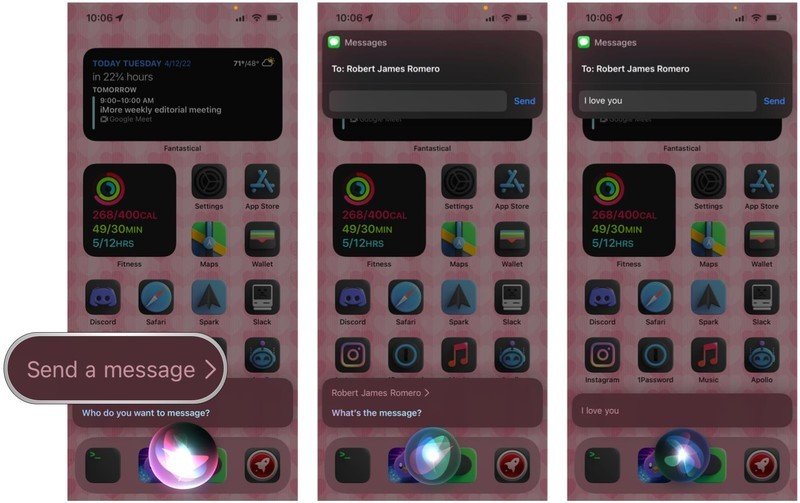
    Send message with Siri on iPhone: Activate Siri, say Send Message, choose a contact, dictate your messageSend message with Siri on iPhone: Activate Siri, say Send Message, choose a contact, dictate your message
  3. Dictate your message.
  4. Wait for Siri to confirm the content of your text.
  5. Say yes or send to send the message.

    Send messages with Siri on iPhone: Wait for Siri to confirm your message, then confirm to send, or say Send messages with Siri on iPhone: Wait for Siri to confirm your message, then confirm to send, or say Source: iMore

If you’re not happy with the message, instead of confirming it, say “Change it” to re-dictate it, or say “Cancel” to abandon it.

How to check for new messages with Siri for iPhone or iPad

  1. Press and hold the Home button on your iPhone or iPad to activate Siri (or say “Hey Siri” to compatible iPhones and iPads).
  2. Say something like, “Check my messages” or “Do I have any new messages?“
  3. Choose one of the messages Siri mentions. She will read new messages upon finding them.
  4. After Siri reads the message, she’ll ask you if you want to reply. If you choose to, dictate your message like you did in the previous section.
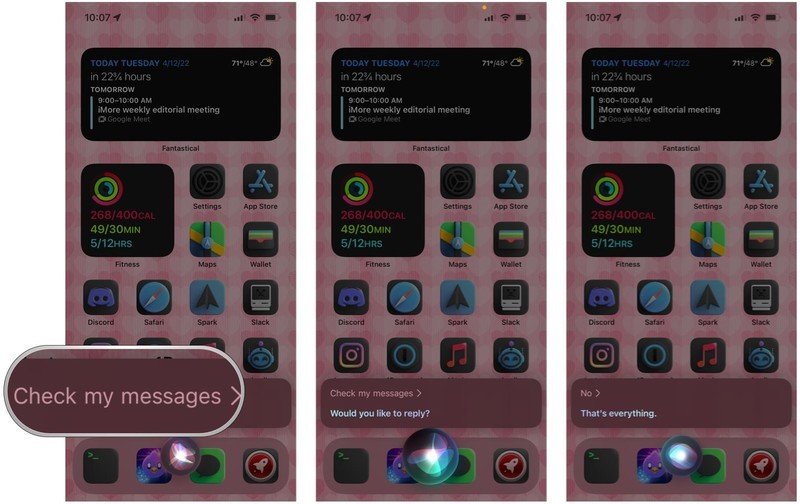
    Check new messages with Siri on iPhone: Activate Siri, say something like Check new messages with Siri on iPhone: Activate Siri, say something like Source: imore

Make life easier with Siri

When you’re in a situation where you just can’t get to your phone immediately, but you need to send a quick message or see what someone else has sent you, Siri can be a lifesaver. It’s super easy to utilize Siri with the Messages app to send and check messages too — after all, she’s your digital assistant.

Updated April 2022: Updated for iOS 15.

Nintendo recap: Sega 'SuperGame' explained, Bugsnax on SwitchNintendo recap: Sega 'SuperGame' explained, Bugsnax on Switch

From the Editor’s desk


Nintendo recap: Sega ‘SuperGame’ explained, Bugsnax on Switch

A lot has happened this week in the world of Nintendo. Bugsnax is coming to Switch with new content, Sega attempted to explain its ‘SuperGame’ project, previewers discovered the new Nintendo Switch Sports can still harm your TV, and more.

(function(d, s, id) {
var js, fjs = d.getElementsByTagName(s)[0];
if (d.getElementById(id)) return;
js = d.createElement(s); js.id = id;
js.src = “//connect.facebook.net/en_US/sdk.js#xfbml=1&version=v2.7”;
js.defer = 1;
fjs.parentNode.insertBefore(js, fjs);
}(document, ‘script’, ‘facebook-jssdk’));

var fbAsyncInitOrg = window.fbAsyncInit;
window.fbAsyncInit = function() {
if(typeof(fbAsyncInitOrg)==’function’) fbAsyncInitOrg();
FB.init({
appId: “291830964262722”,
xfbml: true,
version : ‘v2.7’
});

FB.Event.subscribe(‘xfbml.ready’, function(msg) { // Log all the ready events so we can deal with them later
var events = fbroot.data(‘ready-events’);
if( typeof(events) === ‘undefined’) events = [];
events.push(msg);
fbroot.data(‘ready-events’,events);
});

var fbroot = $(‘#fb-root’).trigger(‘facebook:init’);
};

Source link

Share this:

  • Share on X (Opens in new window) X
  • Share on Facebook (Opens in new window) Facebook

Like this:

Like Loading...
Share186Tweet116Share47

Related Posts

iPhone not hit by Southeast Asia’s collapsing smartphone market
Apple Gadget

iPhone not hit by Southeast Asia’s collapsing smartphone market

November 17, 2022
Indian iPhone owners could finally get 5G support in December
Apple Gadget

iPhone 14 is no longer banned in Colombia, here’s why

November 17, 2022
Foxconn delays reducing iPhone plant production plan over Covid-19 outbreak
Apple Gadget

Foxconn needs 100,000 more workers at its Zhengzhou iPhone plant

November 17, 2022
The world’s biggest iPhone factory has lost 100,000 workers fleeing COVID lockdowns, a third of its workforce
Apple Gadget

The world’s biggest iPhone factory has lost 100,000 workers fleeing COVID lockdowns, a third of its workforce

November 17, 2022
A16 Chip in iPhone 14 Pro Reportedly Costs Apple Over Twice as Much as A15 Chip
Apple Gadget

iPhone 14 Pro’s A16 Bionic Outperforms Latest Snapdragon 8 Chip Coming to Android Phones Later This Year

November 17, 2022
iPhone 15 Pro could feature significantly faster wired data transfer speeds
Apple Gadget

iPhone 15 Pro could feature significantly faster wired data transfer speeds

November 17, 2022
Next Post
New in-app purchase capabilities now available – Latest News

Updates to App Store server notifications - Latest News

Leave a ReplyCancel reply

Recommended

Philips Hue Festavia String Lights Review

Philips Hue Festavia String Lights Review

December 1, 2023
Live a day as a Lumon employee from ‘Severance’ at San Diego Comic-Con

Is Apple TV+ down? Some users are reporting errors when watching content

July 7, 2022
Free Apple TV Apps for Kids

Free Apple TV Apps for Kids

April 19, 2022
Ugreen’s powerful 200W GaN charger is perfect for desktop or traveling [Review] ★★★★☆

Ugreen’s powerful 200W GaN charger is perfect for desktop or traveling [Review] ★★★★☆

October 27, 2022
The Essex Serpent review: a slow, tense drama with lots of great sweaters

The Essex Serpent review: a slow, tense drama with lots of great sweaters

May 12, 2022
iOS 16 reportedly giving iMessage new ‘social network-like’ features including audio message updates

iOS 16 reportedly giving iMessage new ‘social network-like’ features including audio message updates

May 30, 2022
Facebook Twitter Youtube Pinterest
Behalf of Apple

behalfofapple.com is a Tech News Website. We provide you with the latest breaking news and videos straight from the Apple Tech News industry.

Categories

  • Apple Gadget
  • Apps
  • Ipad
  • Iphone
  • News
  • Review

Quick Menu

  • Home
  • About
  • Contact
  • Disclaimer
  • Privacy Policy
  • Terms and Conditions

Copyright © 2022 behalfofapple.com

No Result
View All Result
  • About
  • Contact
  • Disclaimer
  • Home
  • Privacy Policy
  • Terms and Conditions

Copyright © 2022 behalfofapple.com

Discover more from Behalf of Apple

Subscribe now to keep reading and get access to the full archive.

Continue reading

Go to mobile version
%d
    • Disclaimer: We are not affiliated, associated, authorized, endorsed by, or in any way officially connected with Apple. We are merely a tech news organization.