TRENDING
  • About
  • Contact
No Result
View All Result
  • Home
  • News
  • Review
  • Devices
    • Apple Gadget
    • Ipad
    • Iphone
    • Macbook
  • Apps
  • Compares
SUBSCRIBE
  • Home
  • News
  • Review
  • Devices
    • Apple Gadget
    • Ipad
    • Iphone
    • Macbook
  • Apps
  • Compares
No Result
View All Result
No Result
View All Result
Home Devices Apple Gadget

How to troubleshoot FaceTime on iPhone and iPad

by
May 19, 2022
in Apple Gadget, Ipad, Iphone
0
How to troubleshoot FaceTime on iPhone and iPad
465
SHARES
1.5k
VIEWS
Share on FacebookShare on Twitter

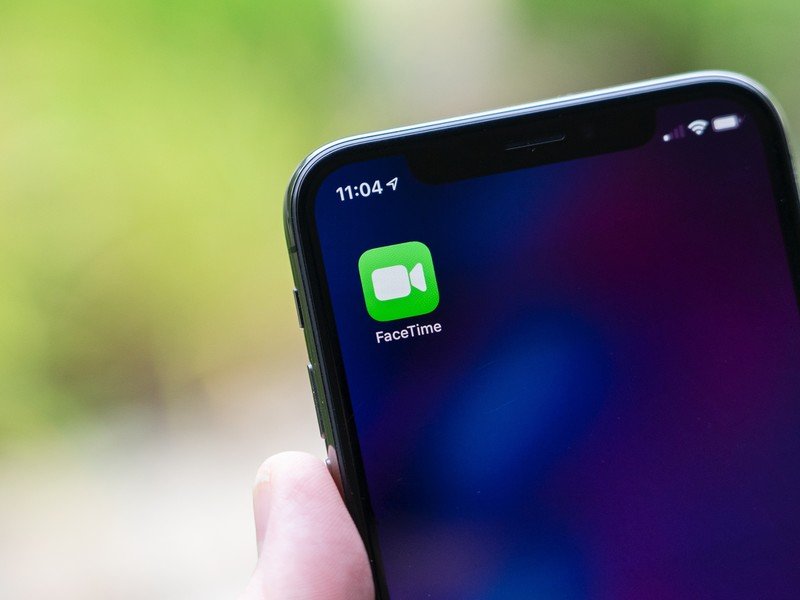
FaceTime is an easy-to-use tool for video calls between Apple devices and, when it is working exactly as it should, it’s one of our favorite iPhone apps out there. As is true with any piece of software, though, issues are bound to crop up for some people when using it. But don’t worry, because we’ve gathered up some top tips to help you resolve any issues you might run into.

Here’s how to troubleshoot FaceTime problems on your iPhone or iPad.

How to turn FaceTime off and on in Settings

There’s an old adage in IT that you can fix most problems by turning the troublesome device off and on again. That rings true for a lit of software, too, where quitting and relaunching can fix the issue. The first thing you should do if you need to troubleshoot FaceTime issues is to try turning FaceTime off and on again. Here’s how.

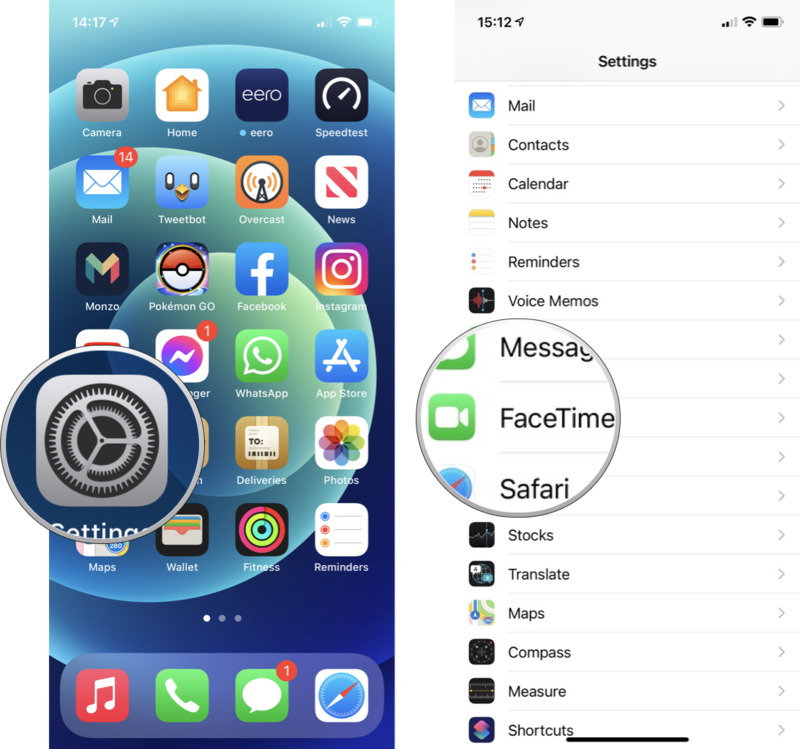
  1. Open Settings on your iPhone or iPad.
  2. Scroll down and tap FaceTime.

    How to turn FaceTime off and on again: Open Settings, scroll down and tap FaceTimeHow to turn FaceTime off and on again: Open Settings, scroll down and tap FaceTimeSource: iMore

  3. Tap the switch next to FaceTime so it changes to the white “off” position. Wait a moment.
  4. Tap the switch again to flip it to the green “on” position. Wait for FaceTime to reactivate.

    Ipad Facetime Troubleshooting Settings IpadIpad Facetime Troubleshooting Settings IpadSource: iMore

How to reset network settings

Of course, your FaceTime issues could be the result of some problems with your network settings.

  1. Open Settings on your iPhone or iPad.
  2. Tap General.

    How to reset network settings: Open Settings, tap on GeneralHow to reset network settings: Open Settings, tap on GeneralSource: iMore

  3. Scroll down and tap Reset.
  4. Tap Reset Network Settings. You might be asked to enter your passcode to confirm.

    How to reset network settings: Scroll down and tap Reset, tap Reset Network Settings, enter your passcode if prompted to confirmHow to reset network settings: Scroll down and tap Reset, tap Reset Network Settings, enter your passcode if prompted to confirmSource: iMore

Note: Resetting network settings will remove previously connected Wi-Fi networks, VPN settings, and will rename your device back to simply “iPhone” or “iPad”.

You may wish to try rebooting your device, as outlined below, first before performing this reset.

How to hard reboot your iPhone or iPad

If turning FaceTime on and off doesn’t work, and resetting your network settings hasn’t made a difference, then you might need to hard reboot your iPhone.

The methods for doing so differ depending on what model of iPhone you have, so check out that linked guide for all of the instructions you need.

Go forth and FaceTime all your friends and foes!

If you own an iPhone or iPad, chances are, FaceTime is one of your most-used apps. It’s such an easy and convenient way to connect with family and friends, especially when you can’t visit in-person because of distance or other concerns. When FaceTime works it’s like magic but sometimes, the magic might need a little tuning.

If you’ve tried all the suggestions in this troubleshooting guide, but you’re still having issues, it might be time to reach out to the source. Contact Apple Support to see if there could be a bigger issue affecting your FaceTime activation or connectivity.

Updated May 2022: Updated for iOS 15.

(function(d, s, id) {
var js, fjs = d.getElementsByTagName(s)[0];
if (d.getElementById(id)) return;
js = d.createElement(s); js.id = id;
js.src = “//connect.facebook.net/en_US/sdk.js#xfbml=1&version=v2.7”;
js.defer = 1;
fjs.parentNode.insertBefore(js, fjs);
}(document, ‘script’, ‘facebook-jssdk’));

var fbAsyncInitOrg = window.fbAsyncInit;
window.fbAsyncInit = function() {
if(typeof(fbAsyncInitOrg)==’function’) fbAsyncInitOrg();
FB.init({
appId: “291830964262722”,
xfbml: true,
version : ‘v2.7’
});

FB.Event.subscribe(‘xfbml.ready’, function(msg) { // Log all the ready events so we can deal with them later
var events = fbroot.data(‘ready-events’);
if( typeof(events) === ‘undefined’) events = [];
events.push(msg);
fbroot.data(‘ready-events’,events);
});

var fbroot = $(‘#fb-root’).trigger(‘facebook:init’);
};

Source link

Share this:

  • Share on X (Opens in new window) X
  • Share on Facebook (Opens in new window) Facebook

Like this:

Like Loading...
Share186Tweet116Share47

Related Posts

iPhone not hit by Southeast Asia’s collapsing smartphone market
Apple Gadget

iPhone not hit by Southeast Asia’s collapsing smartphone market

November 17, 2022
Indian iPhone owners could finally get 5G support in December
Apple Gadget

iPhone 14 is no longer banned in Colombia, here’s why

November 17, 2022
Foxconn delays reducing iPhone plant production plan over Covid-19 outbreak
Apple Gadget

Foxconn needs 100,000 more workers at its Zhengzhou iPhone plant

November 17, 2022
The world’s biggest iPhone factory has lost 100,000 workers fleeing COVID lockdowns, a third of its workforce
Apple Gadget

The world’s biggest iPhone factory has lost 100,000 workers fleeing COVID lockdowns, a third of its workforce

November 17, 2022
A16 Chip in iPhone 14 Pro Reportedly Costs Apple Over Twice as Much as A15 Chip
Apple Gadget

iPhone 14 Pro’s A16 Bionic Outperforms Latest Snapdragon 8 Chip Coming to Android Phones Later This Year

November 17, 2022
iPhone 15 Pro could feature significantly faster wired data transfer speeds
Apple Gadget

iPhone 15 Pro could feature significantly faster wired data transfer speeds

November 17, 2022
Next Post
The Best Alarm Clock Apps for iOS

The Best Alarm Clock Apps for iOS

Leave a ReplyCancel reply

Recommended

The overlap between Apple Music and Classical app is clunky

The overlap between Apple Music and Classical app is clunky

March 28, 2023
iPhone SE 4 Rumored to Feature 6.1-Inch LCD Display With Notch

iPhone SE 4 Rumored to Feature 6.1-Inch LCD Display With Notch

October 9, 2022
White House calls Apple and Google ‘harmful’ in bid to cut app store fees

White House calls Apple and Google ‘harmful’ in bid to cut app store fees

February 1, 2023
Apple to show ads on App Store homepage in new, more prominent format

Apple to show ads on App Store homepage in new, more prominent format

June 20, 2023
Apple launches its new classical music streaming app for pre-order

Apple launches its new classical music streaming app for pre-order

March 9, 2023
iPhone, Mac driving June quarter results in-line with Wall Street forecasts

iPhone, Mac driving June quarter results in-line with Wall Street forecasts

July 11, 2022
Facebook Twitter Youtube Pinterest
Behalf of Apple

behalfofapple.com is a Tech News Website. We provide you with the latest breaking news and videos straight from the Apple Tech News industry.

Categories

  • Apple Gadget
  • Apps
  • Ipad
  • Iphone
  • News
  • Review

Quick Menu

  • Home
  • About
  • Contact
  • Disclaimer
  • Privacy Policy
  • Terms and Conditions

Copyright © 2022 behalfofapple.com

No Result
View All Result
  • About
  • Contact
  • Disclaimer
  • Home
  • Privacy Policy
  • Terms and Conditions

Copyright © 2022 behalfofapple.com

Discover more from Behalf of Apple

Subscribe now to keep reading and get access to the full archive.

Continue reading

Go to mobile version
%d
    • Disclaimer: We are not affiliated, associated, authorized, endorsed by, or in any way officially connected with Apple. We are merely a tech news organization.