TRENDING
  • About
  • Contact
No Result
View All Result
  • Home
  • News
  • Review
  • Devices
    • Apple Gadget
    • Ipad
    • Iphone
    • Macbook
  • Apps
  • Compares
SUBSCRIBE
  • Home
  • News
  • Review
  • Devices
    • Apple Gadget
    • Ipad
    • Iphone
    • Macbook
  • Apps
  • Compares
No Result
View All Result
No Result
View All Result
Home Devices Apple Gadget

How to set up a notification summary on iPhone and iPad

by
May 9, 2022
in Apple Gadget, Ipad, Iphone
0
How to set up a notification summary on iPhone and iPad
465
SHARES
1.5k
VIEWS
Share on FacebookShare on Twitter

Green Iphone 13 Iphone 13 ProSource: Christine Romero-Chan / iMore

When Apple launched iOS 15, it was pretty much building upon the base that iOS 14 started. There were a lot of refinements and improvements systemwide, and while notifications are better than they have been in the past few years, it’s still not perfect. But Apple did introduce Notification Summaries, which helps group together all of your non-important notifications into digestable summaries at specific times of the day that you choose. This way, you aren’t continuously bombarded with notifications at every hour, every minute.

Since Notification Summaries was introduced with iOS 15 and iPadOS 15, you will need to be running the latest version of the software to access this feature. Here’s how to set up a notification summary on your best iPhone and iPad.

How to set up a Notification Summary in iOS 15 and iPadOS 15

Before you can get a notification summary, you have to set them up first. Thankfully, it’s easy to do so in iOS 15 and iPadOS 15.

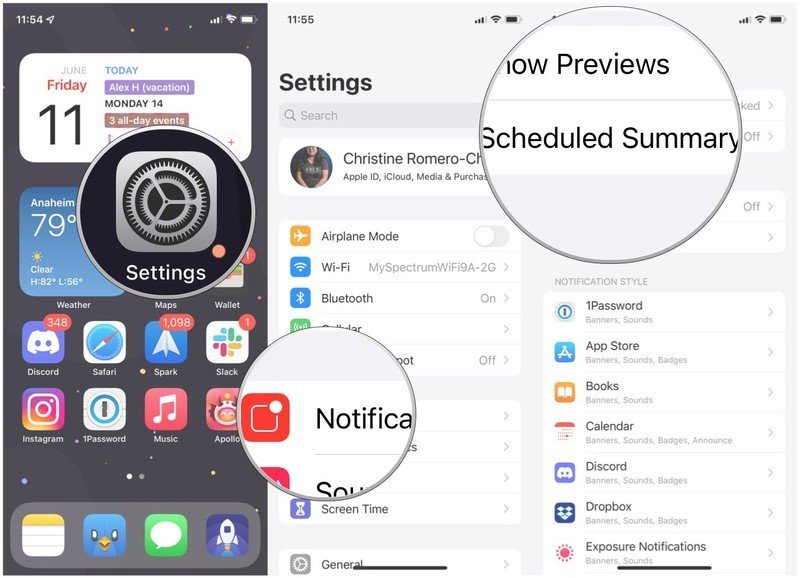
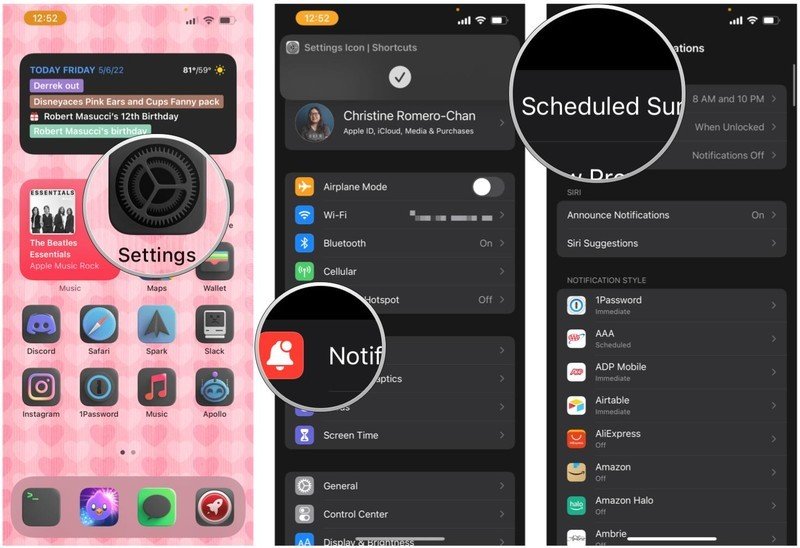
  1. Launch Settings on your iPhone or iPad.
  2. Tap Notifications.
  3. Tap Scheduled Summary.

    Set up Notification Summary on iPhone by showing: Launch Settings, tap Notifications, tap Scheduled SummarySet up Notification Summary on iPhone by showing: Launch Settings, tap Notifications, tap Scheduled SummarySource: iMore

  4. Tap the toggle for Scheduled Summary to ON (green).
  5. Tap Continue.
  6. Select the apps you want to include in your Notification Summary.
  7. Tap Add X apps, where “X” is the number of apps you’ve selected.

    Set up Notification Summary on iPhone by showing: Once you tap the toggle to turn it on, tap Continue, select apps to get notifications in the summary, tap Add AppsSet up Notification Summary on iPhone by showing: Once you tap the toggle to turn it on, tap Continue, select apps to get notifications in the summary, tap Add AppsSource: iMore

  8. Set your schedule. You can have multiple Notification Summaries per day.
  9. Tap on the time picker of the first and second summaries to select a time.
  10. Optionally, you can add a third summary if you want by tapping Add Summary.
  11. You can add more Notification Summaries after the third if you want by tapping Add Summary.
  12. Once you’re done adding the times you want, tap Turn on Notification Summary.

    Set up Notification Summary on iPhone by showing: Select the time for your first two summaries, add a third one or more if you want, then pick the time to receive, then tap Turn On Notification SummariesSet up Notification Summary on iPhone by showing: Select the time for your first two summaries, add a third one or more if you want, then pick the time to receive, then tap Turn On Notification SummariesSource: iMore

How to modify your existing Notification Summary in iOS 15 and iPadOS 15

Once you have set up your notification summaries using the steps above, you can also modify them if you want to change the times, or get less summaries.

  1. Launch Settings on your iPhone or iPad.
  2. Tap Notifications.
  3. Tap Scheduled Summary.

    Modify existing Notification Summary: Launch Settings, tap Notifications, tap Scheduled SummaryModify existing Notification Summary: Launch Settings, tap Notifications, tap Scheduled SummarySource: iMore

  4. Tap the green plus button next to Add Summary if you’d like to add more summaries.

    • Make sure to choose a time that you want the summary delivered at.

    Modify existing Notification Summary: Tap green plus on Add Summary to add a new one, tap the time you want it scheduled forModify existing Notification Summary: Tap green plus on Add Summary to add a new one, tap the time you want it scheduled forSource: iMore

  5. Tap the red minus button next to a summary to remove it.
    • Make sure to tap Delete to confirm.
  6. If you want to see a preview of the next summary in the Notification Center before the scheduled time, tap the toggle for Show Next Summary to ON (green).
  7. Turn the toggle to ON (green) or OFF (gray) for whatever Apps in Summary you want.

    Modify existing Notification Summary: Tap the red minus to remove, tap Delete to confirm, tap toggles on apps in summaryModify existing Notification Summary: Tap the red minus to remove, tap Delete to confirm, tap toggles on apps in summarySource: iMore

Smarter notifications

Notification Summaries is far from perfect, but it’s nice to be able to avoid being barraged with notifications all day. Having the freedom to choose the time that these summaries are delivered, as well as the frequency in one day, is just nice to have. Make it work on your schedule, not the other way around.

Updated May 2022: Updated for the latest version of iOS 15.

ReadKit 3 becomes a universal app, adds more services, and moreReadKit 3 becomes a universal app, adds more services, and more

RSS 4 life


ReadKit 3 becomes a universal app, adds more services, and more

Some people are talking about the resurgence of RSS but the truth is that it never went away. ReadKit has long been one of the best ways to read RSS feeds and now it’s better than ever with a big version 3.0 update that adds a ton of features and changes to the mix.

(function(d, s, id) {
var js, fjs = d.getElementsByTagName(s)[0];
if (d.getElementById(id)) return;
js = d.createElement(s); js.id = id;
js.src = “//connect.facebook.net/en_US/sdk.js#xfbml=1&version=v2.7”;
js.defer = 1;
fjs.parentNode.insertBefore(js, fjs);
}(document, ‘script’, ‘facebook-jssdk’));

var fbAsyncInitOrg = window.fbAsyncInit;
window.fbAsyncInit = function() {
if(typeof(fbAsyncInitOrg)==’function’) fbAsyncInitOrg();
FB.init({
appId: “291830964262722”,
xfbml: true,
version : ‘v2.7’
});

FB.Event.subscribe(‘xfbml.ready’, function(msg) { // Log all the ready events so we can deal with them later
var events = fbroot.data(‘ready-events’);
if( typeof(events) === ‘undefined’) events = [];
events.push(msg);
fbroot.data(‘ready-events’,events);
});

var fbroot = $(‘#fb-root’).trigger(‘facebook:init’);
};

Source link

Share this:

  • Share on X (Opens in new window) X
  • Share on Facebook (Opens in new window) Facebook

Like this:

Like Loading...
Share186Tweet116Share47

Related Posts

iPhone not hit by Southeast Asia’s collapsing smartphone market
Apple Gadget

iPhone not hit by Southeast Asia’s collapsing smartphone market

November 17, 2022
Indian iPhone owners could finally get 5G support in December
Apple Gadget

iPhone 14 is no longer banned in Colombia, here’s why

November 17, 2022
Foxconn delays reducing iPhone plant production plan over Covid-19 outbreak
Apple Gadget

Foxconn needs 100,000 more workers at its Zhengzhou iPhone plant

November 17, 2022
The world’s biggest iPhone factory has lost 100,000 workers fleeing COVID lockdowns, a third of its workforce
Apple Gadget

The world’s biggest iPhone factory has lost 100,000 workers fleeing COVID lockdowns, a third of its workforce

November 17, 2022
A16 Chip in iPhone 14 Pro Reportedly Costs Apple Over Twice as Much as A15 Chip
Apple Gadget

iPhone 14 Pro’s A16 Bionic Outperforms Latest Snapdragon 8 Chip Coming to Android Phones Later This Year

November 17, 2022
iPhone 15 Pro could feature significantly faster wired data transfer speeds
Apple Gadget

iPhone 15 Pro could feature significantly faster wired data transfer speeds

November 17, 2022
Next Post
Best Workout Apps for iOS

Best Workout Apps for iOS

Leave a ReplyCancel reply

Recommended

The overlap between Apple Music and Classical app is clunky

The overlap between Apple Music and Classical app is clunky

March 28, 2023
iPhone SE 4 Rumored to Feature 6.1-Inch LCD Display With Notch

iPhone SE 4 Rumored to Feature 6.1-Inch LCD Display With Notch

October 9, 2022
White House calls Apple and Google ‘harmful’ in bid to cut app store fees

White House calls Apple and Google ‘harmful’ in bid to cut app store fees

February 1, 2023
Apple to show ads on App Store homepage in new, more prominent format

Apple to show ads on App Store homepage in new, more prominent format

June 20, 2023
Apple launches its new classical music streaming app for pre-order

Apple launches its new classical music streaming app for pre-order

March 9, 2023
iPhone, Mac driving June quarter results in-line with Wall Street forecasts

iPhone, Mac driving June quarter results in-line with Wall Street forecasts

July 11, 2022
Facebook Twitter Youtube Pinterest
Behalf of Apple

behalfofapple.com is a Tech News Website. We provide you with the latest breaking news and videos straight from the Apple Tech News industry.

Categories

  • Apple Gadget
  • Apps
  • Ipad
  • Iphone
  • News
  • Review

Quick Menu

  • Home
  • About
  • Contact
  • Disclaimer
  • Privacy Policy
  • Terms and Conditions

Copyright © 2022 behalfofapple.com

No Result
View All Result
  • About
  • Contact
  • Disclaimer
  • Home
  • Privacy Policy
  • Terms and Conditions

Copyright © 2022 behalfofapple.com

Discover more from Behalf of Apple

Subscribe now to keep reading and get access to the full archive.

Continue reading

Go to mobile version
%d
    • Disclaimer: We are not affiliated, associated, authorized, endorsed by, or in any way officially connected with Apple. We are merely a tech news organization.