You may not know it, or you may not need them, but your Mac comes with a bevy of accessibility features that help make your computer more accessible if you have disabilities. Apple is well-known for building best-in-class assistive technologies into all of their platforms — and the Mac, almost four decades old, is no exception. In fact, Apple has a knowledge base article all about the accessibility features of macOS.
When you explore the Accessibility pane in System Preferences, you’ll notice Apple has organized the system’s accessibility features across various developmental domains: Vision, Hearing, Motor, and General. There’s also an Overview tab where Apple concisely summarizes what accessibility does for you. “Accessibility features adapt your Mac to your individual needs,” the copy reads. “Your Mac can be customized to support your vision, hearing, physical motor, and learning & literacy requirements.” Accessibility features are turned off by default, but you can visit System Preferences to enable anything you need or want. Most are accessible system-wide via a keyboard shortcut.
Let’s examine each category and its features.
Note: this article was written using a macOS Monterey system; the Ventura version of the operating system was still in beta at the time.
Vision

Under the Vision category, Apple lists VoiceOver, Zoom, Display, Spoken Content, and Descriptions.
VoiceOver, the award-winning screen reader, is arguably the canonical Apple accessibility feature. It’s the one most users (and app developers) are most familiar with. As you’d expect from a screen reader, VoiceOver allows people with blindness or low vision to navigate their computer through voice prompts. As you move through the Dock, for example, VoiceOver will say “Button, Mail” as your pointer hovers over the mail icon. VoiceOver is deeply customizable as well; users can train it to recognize certain words, and the voice and talk speed can be varied as desired.
Zoom is pretty straightforward: turn it on and the interface is zoomed in. As with VoiceOver, Zoom can be customized to a considerable degree — you can choose to scroll with a modifier key (such as the control or option keys). You can zoom the full screen, via split-screen, picture-in-picture, and more.
One notable feature in the Zoom section is Hover Text. After turning it on, users can hold Command (⌘) while the mouse is hovering over something (hence the name) to show a large-text view of the item. This is especially useful for reading the small print in System Preferences, for example. And yes, Hover Text is easily customizable — you can change the font type and colors of the text box in order to suit your visual needs.

The other three features under Vision are closely interrelated. Display allows a slew of options for more accessible ways to view the screen, such as increasing contrast and reducing transparency. Spoken Content allows you to change the sound and speaking rate of the system voice; you also have the option to toggle on or off the ability to speak announcements like notifications, items under the pointer, and more. Lastly, Descriptions let you turn on audio descriptions for what Apple describes as “visual content in media.”
Hearing

There are three features under this category: Audio, RTT, and Captions.
The Audio section is pretty sparse, only giving the option of a screen flash when an alert comes in. Conceptually, this serves the same purpose as the flashing telephone we had in our house when I was growing up. My parents were both fully deaf, so every time the phone would ring, a lamp in the living room would flash (in addition to the usual ring I could hear), alerting them that the phone was ringing.
RTT, or real-time text, is a mode where people can call deaf and hard of hearing people who use a TDD device. TDDs make a unique sound, so it was easy to know when another TDD user was calling my parents; I would simply place the phone’s receiver on the TDD and tell my parents the call was for them. (Note: older Macs may not include the RTT feature.)
Finally, Captions allow users to customize the look and feel of the system-wide captions to suit their tastes.
Motor
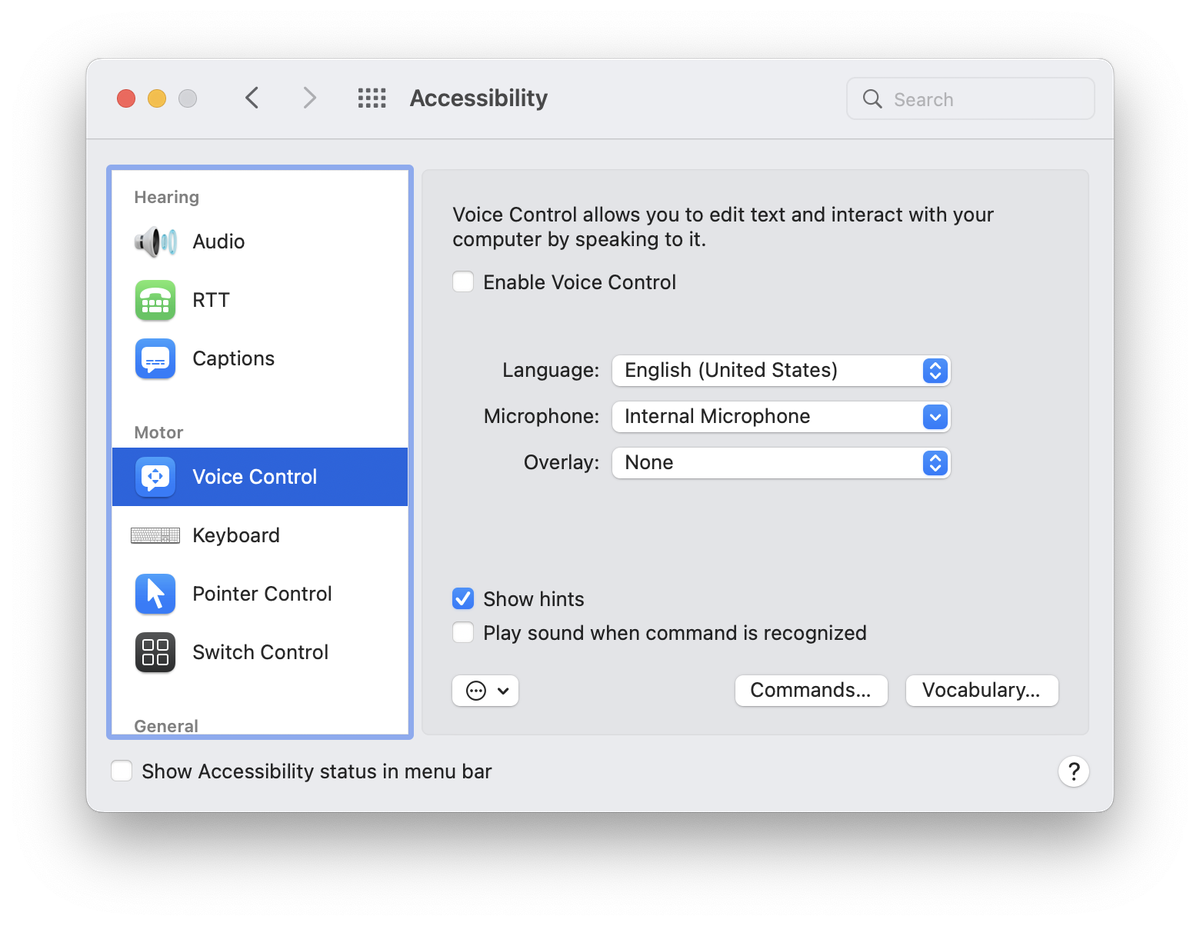
The Motor category includes Voice Control, Keyboard, Pointer Control, and Switch Control.
Voice Control, introduced with much fanfare in macOS Catalina at WWDC 2019, allows you to control your entire Mac with just your voice, which is liberating for those who cannot use traditional input methods like a mouse and keyboard. You can choose to enable or disable specific verbal commands and even add specific vocabulary that you’d prefer to use.
Keyboard lists a slew of options for configuring how the keyboard behaves. For example, Sticky Keys (found in the Hardware tab) is helpful for those who cannot hold down modifier keys to perform keyboard shortcuts. Pointer Control is analogous to Keyboard insofar as it allows customization for how the pointer behaves; its Alternate Control Methods tab helps you enable several useful options. For example, Enable alternate pointer actions lets you control your pointer with a separate switch or a facial expression, while Enable head pointer lets you use head movement. Switch Control, like Voice Control, allows for hands-free operation of one’s computer using external buttons called switches. Apple sells a variety of Mac-compatible switches on its website.
General
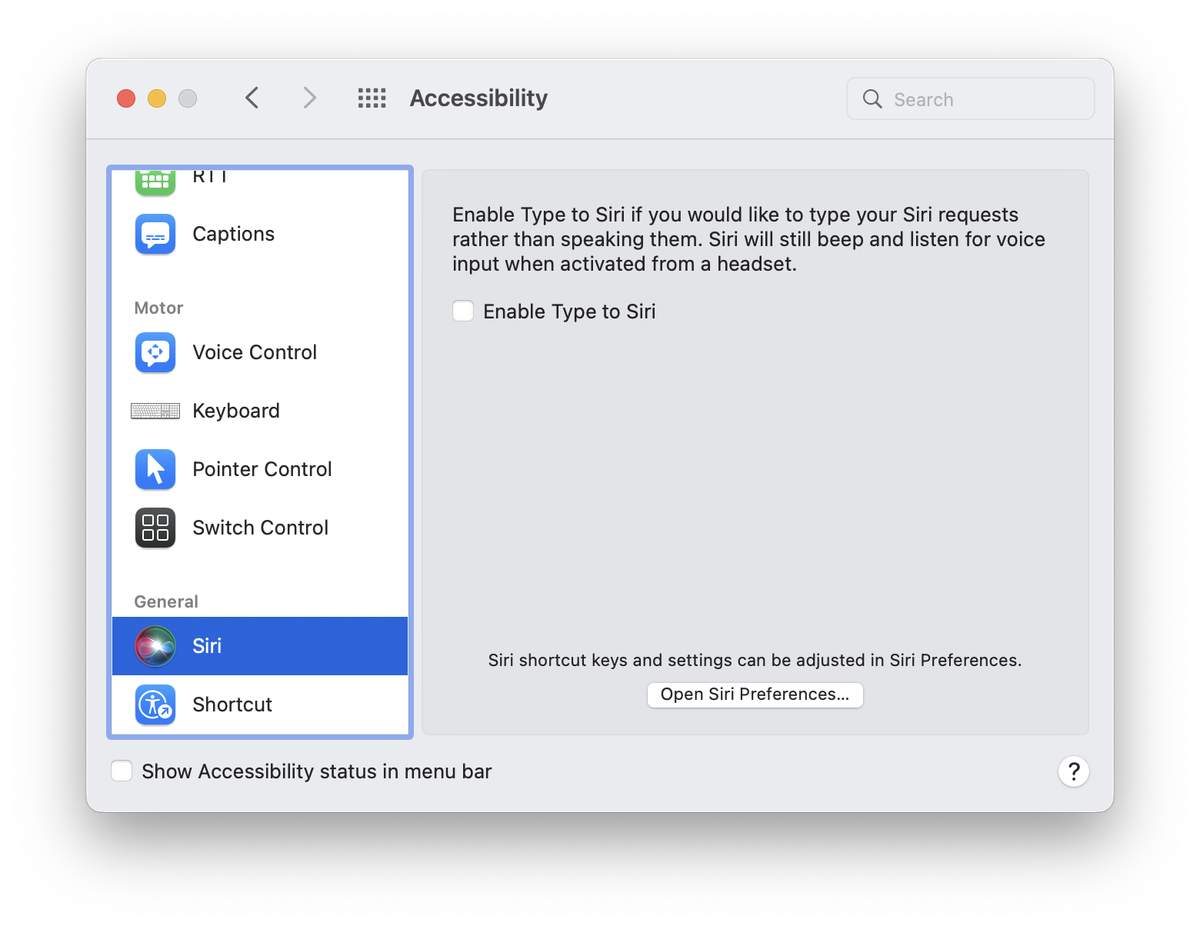
General consists of two features: Siri and the Accessibility Shortcut.
Under Siri, Apple gives users the ability to enable Type to Siri, which allows users — who are Deaf or have a speech delay, for example — to interact with Siri in a Messages-style interface.
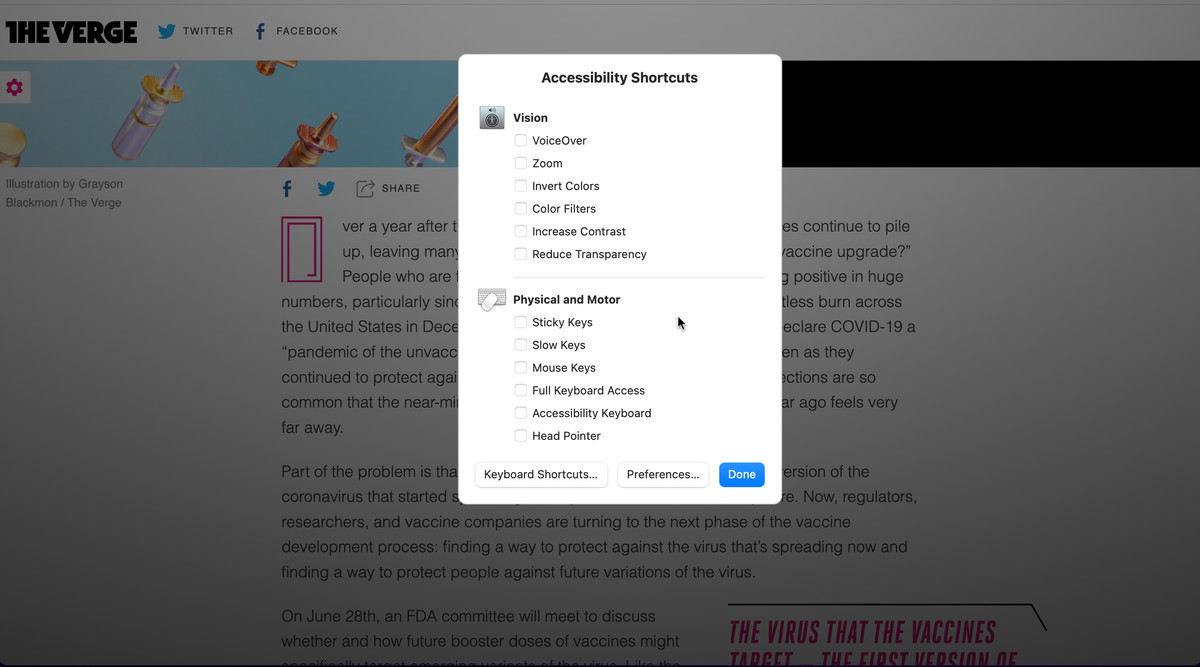
Shortcut is straightforward. Using a keyboard shortcut (Option-Command-F5), you get a pop-up menu that lets you invoke whichever accessibility feature you choose. It’s also possible to set more than one shortcut.
One important thing to note about all the macOS accessibility features is their place in the broader Apple ecosystem. Most of them are available on one (or more) of Apple’s other platforms, like iOS, iPadOS, and tvOS. This is notable from an accessibility perspective because of its consistency.
For those with certain cognitive conditions who move between devices, the linearity of the accessibility features across platforms means a more comforting, consistent experience. A person will know what to expect and how to use certain things, which goes a long way in shaping a positive user experience when regularly jumping from device to device.
Update July 11th, 2022, 3:15PM ET: Updated to add a note that this was written about macOS Monterey.