TRENDING
  • About
  • Contact
No Result
View All Result
  • Home
  • News
  • Review
  • Devices
    • Apple Gadget
    • Ipad
    • Iphone
    • Macbook
  • Apps
  • Compares
SUBSCRIBE
  • Home
  • News
  • Review
  • Devices
    • Apple Gadget
    • Ipad
    • Iphone
    • Macbook
  • Apps
  • Compares
No Result
View All Result
No Result
View All Result
Home News

How to change your Apple ID password in three different ways

by
July 16, 2022
in News
0
How to change your Apple ID password in three different ways
465
SHARES
1.5k
VIEWS
Share on FacebookShare on Twitter

Your Apple ID is your key to using the integrated services of Apple’s ecosystem, including the App Store, iCloud, iMessage, FaceTime, and Apple Music. You also need one to set up any new Apple device. As with any password, if you think it may have been compromised, you should change it immediately. It’s also a good idea to change it every few months to help keep it extra secure.

When you do choose a new password, you’ll need to think of one that’s at least eight characters long and uses at least one number, one uppercase letter, and one lowercase letter. You also can’t reuse a password from the last year.

Here are the steps you’ll need to take to change your Apple ID password. Bear in mind that these will only work if you know your current password. If you’ve forgotten it entirely, you will need to go through Apple’s reset password process, which you can initiate from any of your Apple devices.

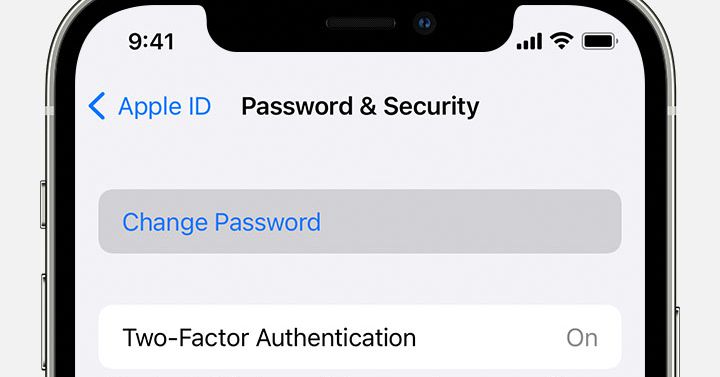
On your iOS device

  1. On your iPad, iPhone, or Apple Watch, go to Settings, tap on your name at the top, and choose Password & Security.
  2. Choose Change Password.
  3. You’ll be prompted to enter your device passcode and then enter a new password and confirm it.
  4. Tap Change.
  5. Back at the main Settings screen, sign in with your new password to access Apple features and services.

Apple’s System Preferences window for Apple ID

Use Apple’s System Preferences window to change your password on your Mac.
Image: Jennifer Pattison Tuohy

On your Mac

  1. Click on the Apple menu in the top left-hand corner, choose System Preferences, and then click the Apple ID tile.
  2. Click on Password & Security.
  3. Click on Change Password.
  4. Enter the password you use to unlock your Mac computer.
  5. Enter your new password and verify it.
  6. Click on Change.

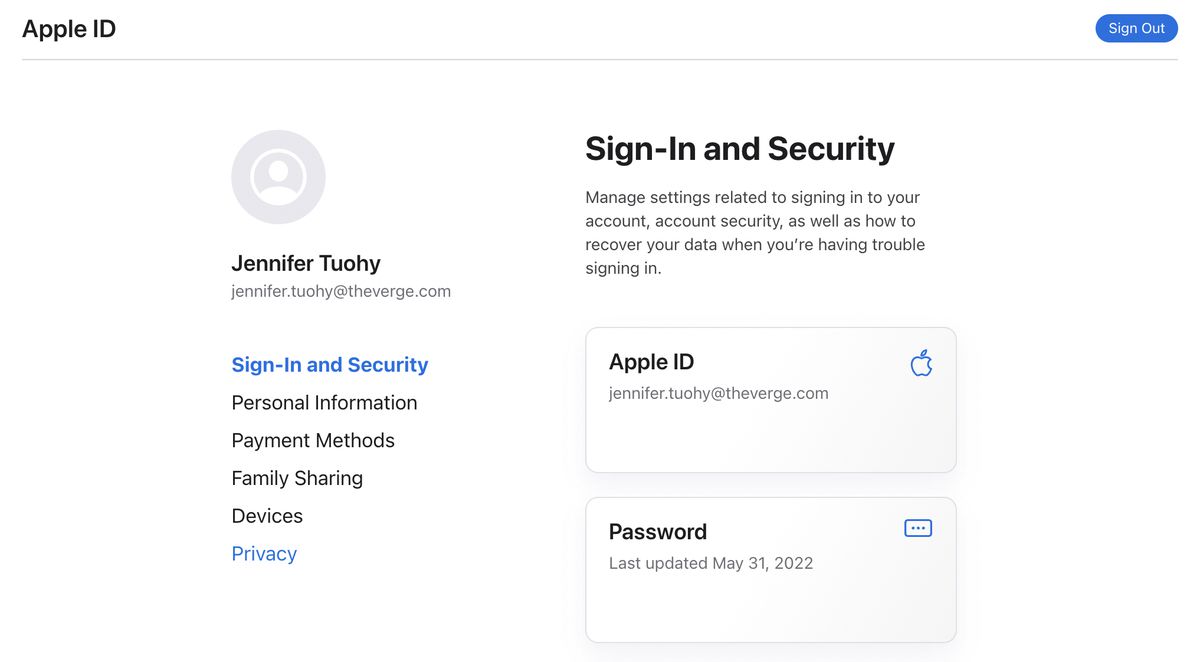
You can also change your password on Apple’s website.
Image: Jennifer Pattison Tuohy

On the web

  1. Go to appleid.apple.com.
  2. Click on Sign In in the top menu bar and sign in to your Apple ID account.
  3. Select Sign-In and Security in the side menu.
  4. Select Password.
  5. Enter your current password, and then enter a new password and confirm it.
  6. You can also choose to sign out of all Apple devices and websites here by selecting the checkbox.
  7. Click Change Password.

Source link

Share this:

  • Share on X (Opens in new window) X
  • Share on Facebook (Opens in new window) Facebook

Like this:

Like Loading...
Share186Tweet116Share47

Related Posts

Head to Space in the Classic Graphic Adventure Game Dexter Stardust
News

Head to Space in the Classic Graphic Adventure Game Dexter Stardust

August 12, 2022
Facebook avoids European blackout as regulators squabble over EU-US data transfers  – TechCrunch
News

Facebook avoids European blackout as regulators squabble over EU-US data transfers  – TechCrunch

August 12, 2022
Telegram founder blames Apple for holding back a major update
News

Telegram founder blames Apple for holding back a major update

August 12, 2022
What’s new in advertising attribution technologies – Latest News
News

Upcoming AppTrackingTransparency requirements – Latest News

August 12, 2022
Apple TV+ picks up dark comedy Physical for third season
News

Apple TV+ picks up dark comedy Physical for third season

August 11, 2022
Apple renews Rose Byrne’s dramedy series Physical for a third season
News

Apple renews Rose Byrne’s dramedy series Physical for a third season

August 11, 2022
Next Post
Elon wants out, TikTok’s content ratings, a new milestone for subscription revenue – TechCrunch

Elon wants out, TikTok’s content ratings, a new milestone for subscription revenue – TechCrunch

Leave a ReplyCancel reply

Recommended

The overlap between Apple Music and Classical app is clunky

The overlap between Apple Music and Classical app is clunky

March 28, 2023
iPhone SE 4 Rumored to Feature 6.1-Inch LCD Display With Notch

iPhone SE 4 Rumored to Feature 6.1-Inch LCD Display With Notch

October 9, 2022
White House calls Apple and Google ‘harmful’ in bid to cut app store fees

White House calls Apple and Google ‘harmful’ in bid to cut app store fees

February 1, 2023
Apple to show ads on App Store homepage in new, more prominent format

Apple to show ads on App Store homepage in new, more prominent format

June 20, 2023
Apple launches its new classical music streaming app for pre-order

Apple launches its new classical music streaming app for pre-order

March 9, 2023
iPhone, Mac driving June quarter results in-line with Wall Street forecasts

iPhone, Mac driving June quarter results in-line with Wall Street forecasts

July 11, 2022
Facebook Twitter Youtube Pinterest
Behalf of Apple

behalfofapple.com is a Tech News Website. We provide you with the latest breaking news and videos straight from the Apple Tech News industry.

Categories

  • Apple Gadget
  • Apps
  • Ipad
  • Iphone
  • News
  • Review

Quick Menu

  • Home
  • About
  • Contact
  • Disclaimer
  • Privacy Policy
  • Terms and Conditions

Copyright © 2022 behalfofapple.com

No Result
View All Result
  • About
  • Contact
  • Disclaimer
  • Home
  • Privacy Policy
  • Terms and Conditions

Copyright © 2022 behalfofapple.com

Discover more from Behalf of Apple

Subscribe now to keep reading and get access to the full archive.

Continue reading

Go to mobile version
%d
    • Disclaimer: We are not affiliated, associated, authorized, endorsed by, or in any way officially connected with Apple. We are merely a tech news organization.