TRENDING
  • About
  • Contact
No Result
View All Result
  • Home
  • News
  • Review
  • Devices
    • Apple Gadget
    • Ipad
    • Iphone
    • Macbook
  • Apps
  • Compares
SUBSCRIBE
  • Home
  • News
  • Review
  • Devices
    • Apple Gadget
    • Ipad
    • Iphone
    • Macbook
  • Apps
  • Compares
No Result
View All Result
No Result
View All Result
Home Apps

How to Automatically Toggle iPhone Orientation Lock for Specific Apps

by
May 29, 2023
in Apps
0
How to Automatically Toggle iPhone Orientation Lock for Specific Apps
465
SHARES
1.5k
VIEWS
Share on FacebookShare on Twitter

Tired of toggling your iPhone’s Orientation Lock for certain apps? Keep reading to learn how you can make iOS do it for you automatically.
orientation lock
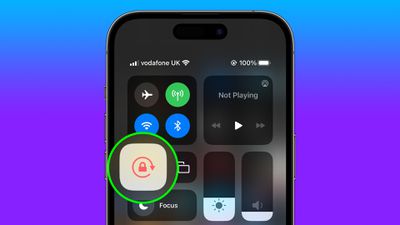
In iOS, many apps display a different view when you rotate your iPhone from portrait to landscape orientation. Depending on the app and the way you use it, this behavior isn’t always desirable, which is why Apple includes the Orientation Lock option in Control Center.

However, certain apps work more usefully with Orientation Lock disabled – think YouTube or the Photos app, where rotating your device to landscape orientation makes for a better fullscreen viewing experience.

If you tend to keep the lock on, you have to disable it in Control Center each time you open these kinds of apps to get the fullscreen experience. Then when you close the app, you have to remember to turn Orientation Lock back on, which isn’t ideal. Fortunately, there is a simple personal automation you can create that will take over this process for you for specific apps, so you don’t have to keep going in and out of Control Center any more.

The following steps show you how it’s done.

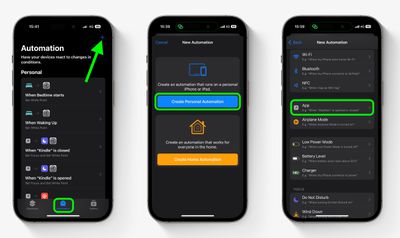
  1. Open the Shortcuts app on your iPhone and select the Automation tab.
  2. Tap the plus symbol in the top-right corner of the screen.
  3. Tap Create Personal Automation.
  4. Scroll down and select App.
    shortcutsshortcuts
  5. Make sure Is Opened and Is Closed are both checked, then tap the blue Choose option.
  6. Select the apps that you want the automation to work with (we’re selecting YouTube and Photos), then tap Done.
  7. Tap Next.
  8. Tap Add Action.
    shortcutsshortcuts
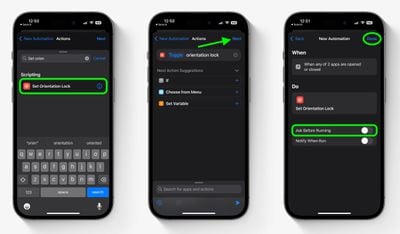
  9. Start typing “Set Orientation Lock” into the search field, then select the script in the search results when it appears.
  10. Tap Next in the top-right of the Actions screen.
  11. Toggle off the switch next to Ask Before Running, then tap Don’t Ask in the confirmation prompt.
  12. Tap Done to finish.
    shortcutsshortcuts

Your automation will now be saved in the Shortcuts app, and will be activated the next time you open or close any of the apps you selected for it to work with. Bear in mind that if Orientation Lock is already disabled and you open one of the selected apps, the lock will be turned back on, which is likely the reverse effect that you intended.

Source link

Share this:

  • Twitter
  • Facebook

Like this:

Like Loading...
Share186Tweet116Share47

Related Posts

The ultimate in pet entertainment: Jolly Dog [Awesome Apps]
Apps

The ultimate in pet entertainment: Jolly Dog [Awesome Apps]

October 6, 2023
How to master the camera app on iPhone 15 Pro & 15 Pro Max
Apps

How to master the camera app on iPhone 15 Pro & 15 Pro Max

October 6, 2023
Google, Apple face fines in South Korea for breaching in-app billing rules
Apps

Google, Apple face fines in South Korea for breaching in-app billing rules

October 6, 2023
South Korea threatens to fine Apple over App Store dominance
Apps

South Korea threatens to fine Apple over App Store dominance

October 6, 2023
Get an exclusive $20 off this top rated investment advising app
Apps

Get an exclusive $20 off this top rated investment advising app

October 5, 2023
Apple Launches SF Symbols 5 With 700+ New Icons for Developers to Use in Apps
Apps

Apple Launches SF Symbols 5 With 700+ New Icons for Developers to Use in Apps

October 5, 2023
Next Post
Get the latest Apple Developer app update – Discover

Get the latest Apple Developer app update - Discover

Leave a ReplyCancel reply

Recommended

Apple seeds third public betas of iOS 16 and iPadOS 16

Apple seeds third public betas of iOS 16 and iPadOS 16

August 10, 2022
Twitter Blue will cost $11 per month for iOS app subscribers

Twitter Blue will cost $11 per month for iOS app subscribers

December 10, 2022
Apple CEO Tim Cook to Deliver Commencement Address at Gallaudet University

Apple CEO Tim Cook to Deliver Commencement Address at Gallaudet University

April 18, 2022
Twelve South ButterFly 2-in-1 MagSafe Charger Review

Twelve South ButterFly 2-in-1 MagSafe Charger Review

December 15, 2023
PITAKA’s MagEZ Case 3 line offers a near case-less feel for your iPhone 14

PITAKA’s MagEZ Case 3 line offers a near case-less feel for your iPhone 14

September 20, 2022
Apple Reaches Settlement to Pay $15 to Some iPhone 4S Owners Who Experienced Buggy Performance After iOS 9 Update

Apple Reaches Settlement to Pay $15 to Some iPhone 4S Owners Who Experienced Buggy Performance After iOS 9 Update

May 5, 2022
Facebook Twitter Youtube Pinterest
Behalf of Apple

behalfofapple.com is a Tech News Website. We provide you with the latest breaking news and videos straight from the Apple Tech News industry.

Categories

  • Apple Gadget
  • Apps
  • Ipad
  • Iphone
  • News
  • Review

Quick Menu

  • Home
  • About
  • Contact
  • Disclaimer
  • Privacy Policy
  • Terms and Conditions

Copyright © 2022 behalfofapple.com

No Result
View All Result
  • About
  • Contact
  • Disclaimer
  • Home
  • Privacy Policy
  • Terms and Conditions

Copyright © 2022 behalfofapple.com

Discover more from Behalf of Apple

Subscribe now to keep reading and get access to the full archive.

Subscribe

Continue reading

Go to mobile version
 

Loading Comments...
 

    %d
      • Disclaimer: We are not affiliated, associated, authorized, endorsed by, or in any way officially connected with Apple. We are merely a tech news organization.